🧪 Section 06. Lesson 4 Multiple Animations
📝 Summary of What You Will Do in This Section
In this section, your main goal is to combine multiple CSS animations on one element. You will create lesson-04-multiple-and-shorthand.html and use two separate keyframe animations at the same time: one that changes size and one that changes opacity. This helps you move from single-effect motion into layered animation design.
By the end of this section, you will understand how one element can run multiple motion patterns in parallel using comma-separated animation values. You will still include the shared js/main.js file so Restart works, but JavaScript remains helper code. The learning target is how CSS animation layers work together.
✅ Checklist of What You Need to Do
- Create
lesson-04-multiple-and-shorthand.htmlin your project root. - Type the full lesson file by hand, including the
<style>block. - Add both
@keyframes growand@keyframes fadein the lesson CSS. - Focus on the comma-separated
animationshorthand in.multi .box.replay. - Make sure the page links to both
css/styles.cssandjs/main.js. - Test the Restart button and observe both animations running at the same time.
- Keep JavaScript in helper mode; no new JavaScript code is required in this section.
🧠 Core Concepts
This lesson introduces layered motion. In earlier sections, one keyframes rule drove one visible effect at a time. Now, one element can run multiple keyframes at once. This is useful in real interfaces because animation often needs to communicate more than one thing. For example, an element can grow to draw attention while also fading in to feel softer and more polished.
The key idea is that CSS animation shorthand accepts comma-separated values. Each comma starts a new animation track. That means the browser runs each track in parallel on the same element. You can give each track different timing, direction, loop count, and fill behavior. This gives you expressive control without needing extra HTML elements or complex scripting.
This section also helps you practice reading shorthand blocks that span multiple lines. Multi-line shorthand is normal in real codebases because it is easier to scan and edit than a single long line. Learning to read this format now will make later animation sections easier.
💻 Code You Will Write in This Section
HTML + CSS (lesson-04-multiple-and-shorthand.html)
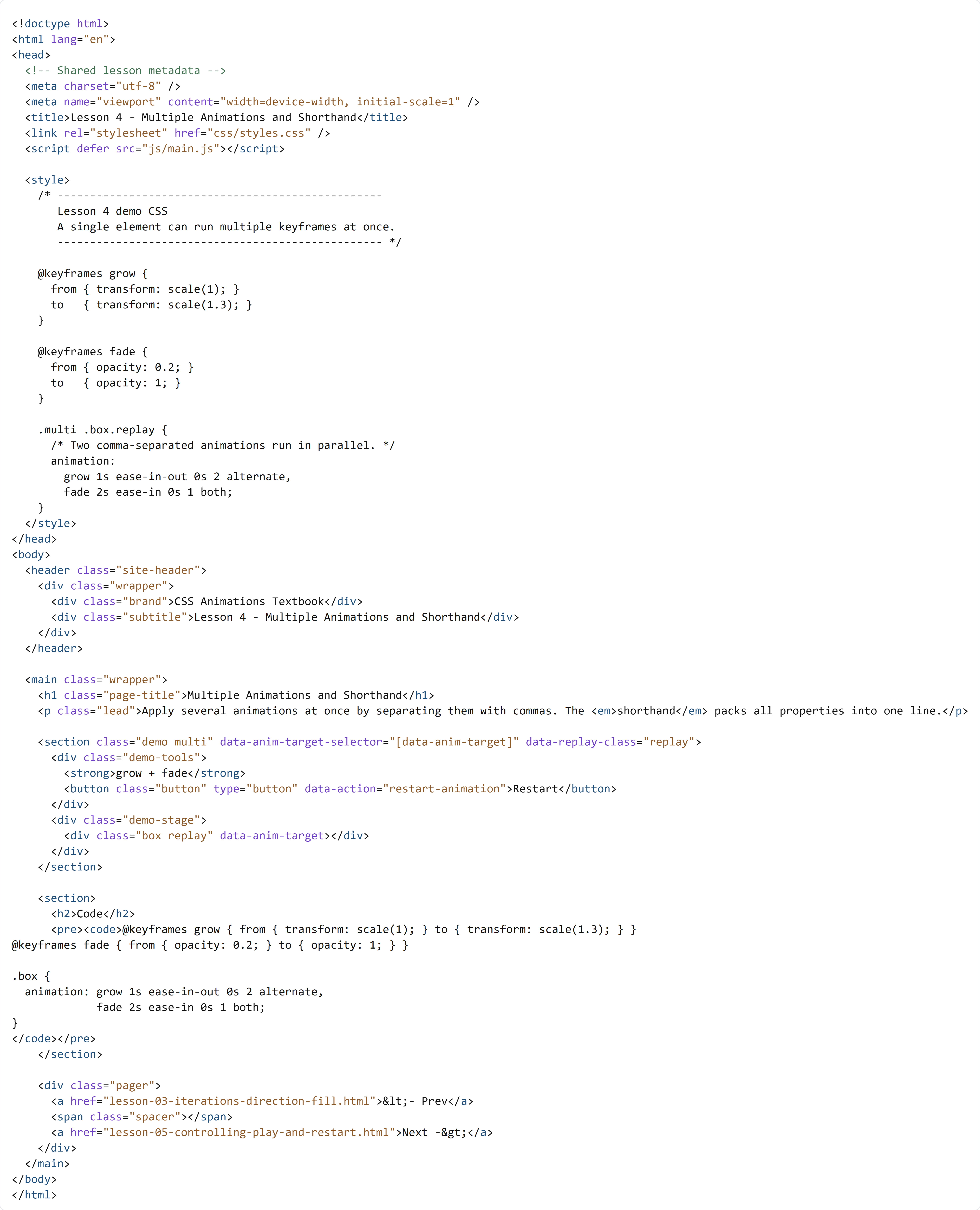
Create lesson-04-multiple-and-shorthand.html in your project root and type the full file below by hand.
You are adding the entire Lesson 4 page in this section. In Section 07, you will create lesson-05-controlling-play-and-restart.html and focus on pause/resume behavior while keeping CSS as the main motion source.
🔍 Key Concepts
In the <style> block, @keyframes grow controls scale change, and @keyframes fade controls opacity change. These are two separate motion goals. The combined selector .multi .box.replay then applies both animations to the same .box element using one comma-separated animation declaration. This is the most important line in the section.
The first animation track (grow 1s ease-in-out 0s 2 alternate) runs a scale effect that goes forward and backward for two cycles. The second track (fade 2s ease-in 0s 1 both) handles opacity and keeps the resulting state with both. Because these tracks have different durations and behaviors, students can see how layered motion can feel richer than a single animation.
In the HTML structure, the demo area follows the same pattern from earlier sections: one restart button and one animated target element. That consistency is useful because students can focus on CSS animation differences instead of new layout rules. The shared JavaScript file only restarts the demo so the layered CSS motion can be replayed and studied.