⏯ Section 07. Lesson 5 Pause/Resume and Restart
📝 Summary of What You Will Do in This Section
In this section, your main goal is to control CSS animation playback while the animation is running. You will create lesson-05-controlling-play-and-restart.html and work with an orbit animation that loops forever until you pause it. This section helps you understand that animation is not just about how something moves, but also about when it should keep moving and when it should stop.
By the end of this section, you will be able to pause, resume, and restart an animation demo while keeping the motion itself defined in CSS. You will keep using js/main.js, but only as helper code for button interactions. The core learning target is still CSS animation behavior.
✅ Checklist of What You Need to Do
- Create
lesson-05-controlling-play-and-restart.htmlin your project root. - Type the full lesson file by hand, including the
<style>block. - Add the
@keyframes orbitrule and the.planet.replayanimation declaration. - Focus on how an infinite CSS animation behaves when paused and resumed.
- Add both control buttons with correct
data-actionattributes. - Make sure the page links to both
css/styles.cssandjs/main.js. - Test Pause, Resume, and Restart behavior to observe CSS playback control clearly.
- Keep JavaScript in helper mode; no new JavaScript code is required in this section.
🧠 Core Concepts
This lesson adds a practical control idea to your animation toolkit: playback state. In earlier sections, animations started and finished on their own based on duration and iteration settings. Now, you are working with an animation that runs infinitely, and you need a way to temporarily stop and continue it. This teaches an important user-interface pattern where motion should be controllable, not always automatic.
The animation itself is still created with CSS. Your @keyframes orbit rule defines the motion path, and .planet.replay { animation: orbit 3s linear infinite; } keeps it looping. The pause/resume behavior is connected to CSS through animation-play-state, which is what changes between running and paused. This is the key CSS behavior concept in this section.
You will also see how helper controls are wired with data attributes. Buttons carry data-action values like toggle-play and restart-animation. The existing JavaScript reads those values and triggers control behavior. That means students can focus on animation learning in CSS while using a simple, reusable control pattern for interaction.
💻 Code You Will Write in This Section
HTML + CSS (lesson-05-controlling-play-and-restart.html)
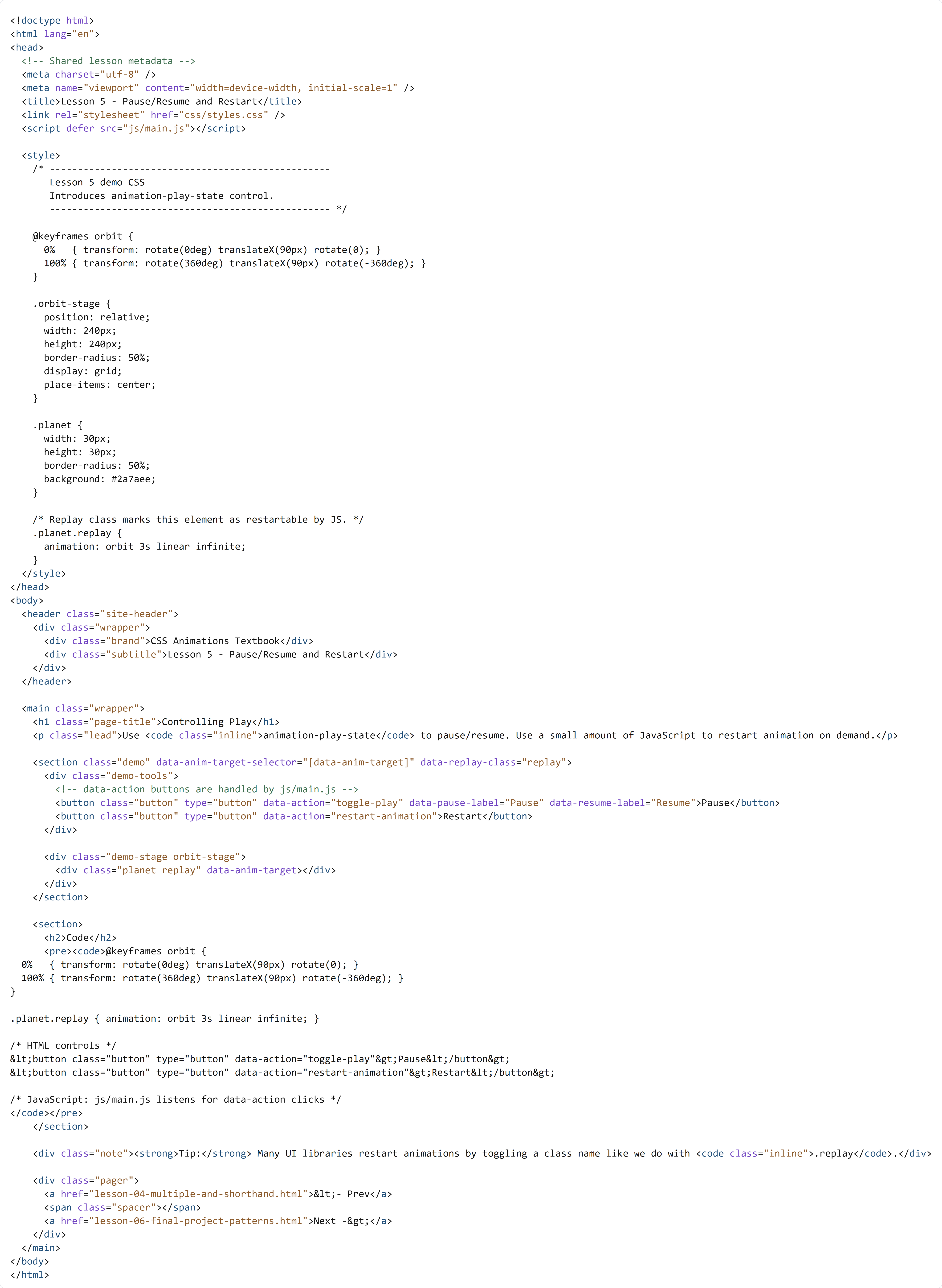
Create lesson-05-controlling-play-and-restart.html in your project root and type the full file below by hand.
You are adding the entire Lesson 5 page in this section. In Section 08, you will create lesson-06-final-project-patterns.html and combine your animation skills into a realistic mini interface.
🔍 Key Concepts
In the <style> block, @keyframes orbit builds circular motion by combining rotate() and translateX() transforms. The .planet.replay rule applies that keyframes timeline with 3s linear infinite, so the orbit keeps repeating smoothly. This line is important because it shows how to create a continuous animation that can later be controlled by playback state.
In the HTML controls area, the Pause button uses data-action="toggle-play", and the Restart button uses data-action="restart-animation". These data attributes are communication labels for the shared helper script. The button text switching between Pause and Resume helps students see playback-state changes in real time, but the movement logic still comes from CSS.
The data-anim-target attribute marks the .planet as the element to control. When students click buttons, JavaScript reads the target and updates playback behavior or restart behavior. This pattern keeps interaction organized across lessons. Most importantly, it reinforces that CSS defines animation motion, and JavaScript only gives users a way to control that motion during practice.